> For the complete documentation index, see [llms.txt](https://tsanet.gitbook.io/connect/llms.txt). Markdown versions of documentation pages are available by appending `.md` to page URLs; this page is available as [Markdown](https://tsanet.gitbook.io/connect/documentation/salesforce-app/installation-guide/package-configuration.md).
# Package Configuration
This section provides detailed instructions for configuring the TSANet Connect 2.0 Salesforce package after installation. Work through the three configuration steps in order; optional customization and reference material follows below.
## Configuration steps
Complete these three steps in order.
Step 1 — Create the Integration User And Assign Permission Sets
{% hint style="warning" %}
**Create the integration user before anything else.** Create the user, check its license, assign the permission sets below, and only then continue with Step 2.
{% endhint %}
#### The integration user needs a full Salesforce license
The user you choose as the **integration user** must hold a full **Salesforce** user license. A **Salesforce Integration** license is not enough: inbound webhooks running as that user cannot create Case Feed items, so collaboration requests and notes never appear on the Case. Check the **User License** column before you assign the permission sets.
The package includes three permission sets:
| Permission set | Assign it to | What it gives |
| --------------------------------------- | ------------------------------------------------ | ------------------------------------------------------------------------------------------------------------------------------------------ |
| `TSANet Connect Permissions (Admin)` | Administrators who set up and manage the package | Full access to all TSANet objects, including delete and View All / Modify All. Shows the **TSANet Cases** and **TSANet Credentials** tabs. |
| `TSANet Connect Permissions (Employee)` | Users who work on TSANet cases | Read, create and edit TSANet records (no delete, no View All). Shows the **TSANet Cases** tab. |
| `TSANet Integration User Access` | Only the integration user that receives webhooks | See **3.1** in Step 3 below. |
To assign the Admin or Employee permission set:
1. Go to **Setup**, type **Permission Sets** in Quick Find, and open **Permission Sets**.
2. Click **TSANet Connect Permissions (Admin)** or **TSANet Connect Permissions (Employee)**.
3. On the permission set page, click **Manage Assignments**.
4. Click **Add Assignment**.
5. Select the user and TSANet Integration User and click **Next**.
6. Choose an expiration option (**No expiration date** keeps the access permanently), then click **Assign** and **Done**.
Step 2 — TSANet Credentials Setup
TSANet Connect authenticates with **OAuth 2.0** using a Salesforce **Named Credential**. The managed package ships both the Named Credential and its External Credential — you do not create them. No TSANet password is stored in Salesforce.
Use the set that matches the TSANet environment you connect to:
| Item | Production | Beta |
| ------------------- | ------------------------------- | ------------------------------- |
| Named Credential | `TSANetAPI` | `TSANetAPIBeta` |
| Endpoint URL | `https://connect2.tsanet.org` | `https://connect2.tsanet.net` |
| External Credential | `TSANetExternalCredential Prod` | `TSANetExternalCredential Beta` |
{% hint style="info" %}
**Do 2.1 as your own administrator user. Only 2.2 to 2.4 run in the integration user's session.**
{% endhint %}
#### 2.1 Open the Named Credential and set the client ID and secret
1. Go to **Setup**, type **Named Credentials** in Quick Find, and open **Named Credentials**.
2. Open the Named Credential for your environment — `TSANetAPI`, or `TSANetAPIBeta` for Beta.
3. Switch to the **External Credentials** tab and open the external credential that it uses.
Its OAuth settings ship pre-configured:
| Field | Value |
| --------------------------------------- | ------------------------------------------------------------------------------ |
| Authentication Protocol | `OAuth 2.0` |
| Authentication Flow Type | `Client Credentials with Client Secret Flow` |
| Identity Provider URL | `https://login.microsoftonline.com//oauth2/v2.0/token` |
| Scope | `/.default` (the audience ID differs between Production and Beta) |
| Pass client credentials in request body | enabled |
4. Scroll down to **Principals**, open the **Actions** menu next to the principal named **`TSANetApp`**, and click **Edit**.
5. Enter the **Client ID** and **Client Secret** that TSANet supplied for that environment, then click **Save**.
{% hint style="warning" %}
**Authentication Status** must read `Configured`. Do this **before** creating the credential record in 2.3 — callouts fail until the client ID and secret are in place.
{% endhint %}
#### 2.2 Log in as the integration user
Create the TSANet Credentials record **while logged in as the integration user**. The record is then owned by that user, and the package's scheduled jobs run as that user.
1. Go to **Setup → Users → Users**
2. Find the integration user and click **Login** next to it
3. Stay in that session for 2.3 and 2.4
#### 2.3 Create the TSANet Credentials record
Open **TSANet Credentials** from the App Launcher and click **New**. The form has two fields:
| Field | What to enter |
| ------------------------------- | ----------------------------------------------------------------------------------------------------------------- |
| **Named Credential** (required) | `TSANetAPI (tsanetconnect__TSANetAPI)` for Production, or `TSANetAPIBeta (tsanetconnect__TSANetAPIBeta)` for Beta |
| **Integration User** | TSANet Integration User |
#### 2.4 Confirm the connection
Save the record, then **refresh the page**. **Is Connected** is set by the package after a successful callout, so it appears only once the page reloads.
| Field | Expected |
| ---------------- | --------------------------------------------------- |
| **Is Primary** | checked — only one credential record can be primary |
| **Is Connected** | checked |
**Is Connected** is the real confirmation that the setup works. The package also fills in **Company ID** and **Company Name** on the record with your TSANet company.
The record also carries a **TSANet Webhooks** related list, where the package registers its callback endpoint for collaboration request events.
Step 3 — Webhooks
This guide explains how to let TSANet deliver webhook events (for example new collaboration requests and notes) into Salesforce through the package's Apex REST endpoint.
TSANet authenticates to Salesforce with **OAuth 2.0 Client Credentials** through an **External Client App**. Every webhook call runs as an **integration user** that has the **TSANet Integration User Access** permission set. A public Salesforce Site and guest user are no longer used.
TSANet webhooks require:
1. An **integration user** with the **TSANet Integration User Access** permission set
2. An **External Client App** with the **Client Credentials Flow** enabled and that user as **Run As**
3. A **TSANet Credential** record
4. A **TSANet Webhook** record pointing to your org's Apex REST endpoint
```
TSANet Platform
↓ OAuth 2.0 Client Credentials (External Client App)
https://.my.salesforce.com
↓
Apex REST Endpoint (/services/apexrest/tsanetconnect/webhook), runs as the integration user
↓
TSANet Package Logic
```
### 3.1 Assign the integration user permission set
The package includes the permission set **TSANet Integration User Access**. It lets the user that receives webhooks publish TSANet webhook events, call TSANet through the External Credential, and queue webhook processing. It gives Case read-only access (no View All). The integration user must still hold a **full Salesforce user license** — with a **Salesforce Integration** license the webhook cannot create Case Feed items. See **Step 1** above.
1. Go to **Setup → Permission Sets**
2. Open **TSANet Integration User Access**
3. Click **Manage Assignments → Add Assignment**
4. Select the integration user that will receive webhooks, then click **Assign**
### 3.2 Create the External Client App
1. Go to **Setup → External Client App Manager** and click **New External Client App**
2. Fill in **External Client App Name**, **API Name** and **Contact Email**, and set **Distribution State** to `Local`
3. Under **API (Enable OAuth Settings)**, select **Enable OAuth** and set:
| Setting | Value |
| --------------- | ----------------------------------------------------------------------------------------------------------------------------------------------------------------------- |
| Callback URL | Any HTTPS URL in your org. The form requires a value, but the Client Credentials flow never calls it — pasting the Setup URL from your browser's address bar is enough. |
| OAuth Scopes | `Manage user data via APIs (api)`, `Full access (full)` |
| Flow Enablement | **Enable Client Credentials Flow** only |
4. Click **Create**. Salesforce warns that it will generate a consumer key and secret — confirm.
5. Open the app, go to the **Policies** tab, click **Edit** and expand **OAuth Policies**:
* **Enable Client Credentials Flow**: checked
* **Run As (Username)**: the integration user from 3.1
6. Click **Save**
### 3.3 Copy the Consumer Key and Consumer Secret
1. Open the External Client App and go to the **Settings** tab
2. Expand **OAuth Settings** and click **Consumer Key and Secret**
3. Keep both values for 3.4. You enter them on the TSANet Webhook as **Client Id** (Consumer Key) and **Client Secret** (Consumer Secret)
TSANet uses them to obtain a Salesforce token before each webhook delivery. They are not stored in Salesforce.
### 3.4 Create the TSANet Webhook
1. Navigate to **App Launcher → TSANet Credentials**
2. Open an existing credential
3. Scroll to the **TSANet Webhooks** related list
4. Click **New**
#### Webhook Configuration Fields
| Field | Value |
| ----------------- | ---------------------------------------------------------------------------- |
| Callback URL | Filled in automatically with your org's My Domain URL (see below) |
| Event Types | `collaboration-request.created` and `note.created`, both selected by default |
| TSANet Credential | Existing credential (e.g., NC‑00001) |
| Client Id | The External Client App's **Consumer Key** (3.3) |
| Client Secret | The External Client App's **Consumer Secret** (3.3) |
#### Callback URL Format (Critical)
The form fills in your org's My Domain URL. Select **Edit** next to the field only if you need to change it. The URL must keep this format and use My Domain, not a Salesforce Site URL:
```
/services/apexrest/tsanetconnect/webhook
```
Example:
```
https://companyoneinc-dev-ed.develop.my.salesforce.com/services/apexrest/tsanetconnect/webhook
```
> This endpoint is implemented inside the TSANet package.\
> Do **not** change the Apex REST path.
5. Click **Save**
A Webhook record (for example `WH-00001`) is created and active.
### 3.5 Confirm the webhook
Open the TSANet Credential again and check its **TSANet Webhooks** related list. The new record is listed with **Active** checked, and **Event Types** is stored with the fully qualified event names:
```
org.tsanet.connect.collaboration-request.created;org.tsanet.connect.collaboration-request.note.created
```
If you created the credential while logged in as the integration user (2.2), the credential's **Created By** shows that user. On the credential itself, **Is Primary** and **Is Connected** must both be checked before webhooks are delivered.
### Encrypted Data Permission for Super User
> **Note:** This permission should only be granted to authorized users because it provides access to sensitive information.
1. Go to **Setup → Permission Sets** and click **New**.
2. Create a permission set:
* **Label:** `Encrypted Data Permission`
* **License:** `--None--`
3. Open the permission set and search for **Encryption**.
4. Under **System Permissions**, select **View Encrypted Data**.
5. Click **Edit**, enable **View Encrypted Data**, and **Save**.
1. Click **Manage Assignments**.
2. Select the users who require access and click **Assign**.
> **Note:** Grant this permission only to authorized users, as it allows viewing encrypted field values in plain text.
### Troubleshooting & Debugging
#### Enable Debug Logs
1. **Setup → Debug Logs**
2. Add a new Trace Flag:
* Traced Entity Type: **User**
* Traced Entity Name: Integration User
* Debug Level: `SFDC_DevConsole`
3. Save
This helps diagnose:
* Permission issues
* Apex execution errors
* Payload parsing failures
### Common Issues & Fixes
| Issue | Cause | Resolution |
| ------------------------- | ----------------------------------------------------------------- | ----------------------------------------------------------- |
| 401 / invalid\_client | Client Credentials Flow not enabled, or wrong Consumer Key/Secret | Check the External Client App **Settings** and **Policies** |
| 403 / insufficient access | Run As user lacks the permission set | Assign **TSANet Integration User Access** |
| Webhook not firing | Webhook inactive or no event types selected | Check **Active** and **Event Types** |
| Apex errors | Object/field access missing | Verify the permission set and check debug logs |
### Summary Checklist
* [ ] Integration user assigned **TSANet Integration User Access**
* [ ] External Client App created, Client Credentials Flow enabled, Run As = integration user
* [ ] Consumer Key and Consumer Secret copied from the External Client App
* [ ] TSANet Credential exists
* [ ] Webhook created with the My Domain callback URL, Client Id and Client Secret
* [ ] Event types configured
## Optional configuration and reference
Everything below is optional customization or reference material.
Component & Layout Configuration - Lightning Web Component
The TSANet Connect LWC can be used and has all functionality. Other Page customization options are available with Actions and related lists for Members also. See the **Customization Options section below**
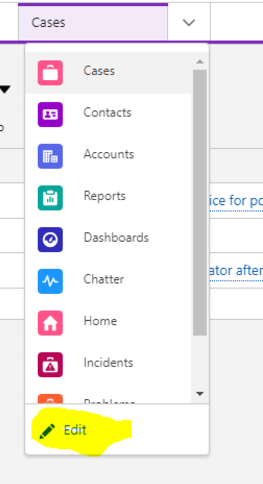
* **Add TSANet Cases List to Service Console**: Go to the Service Console → List dropdown → Edit → Add More Items → add TSANet Cases list.
* **Add TSANetApplication Component to Case Record Page**: Go to the Case record page → click Gear Icon → Edit Page → find the **TSANet Application Widget** component → drag and drop to the appropriate place → click Save.
Note: Other options for Case page customizations are available using flows and actions. See the **Component & Layout Configuration - Customization Options** section below for details.
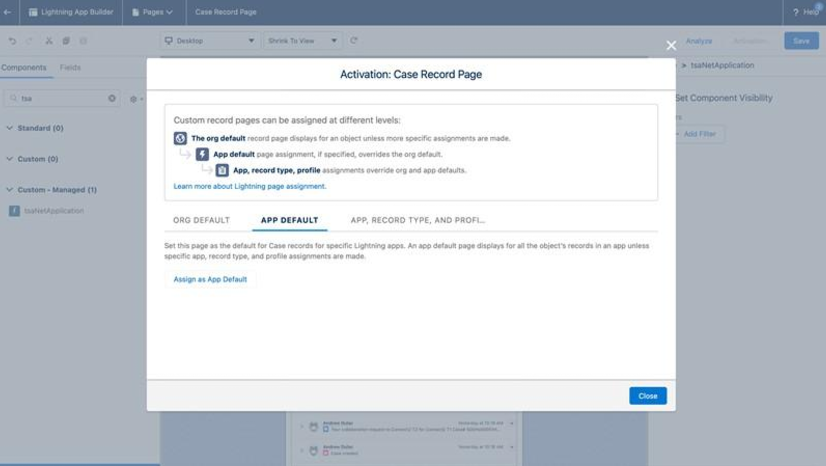
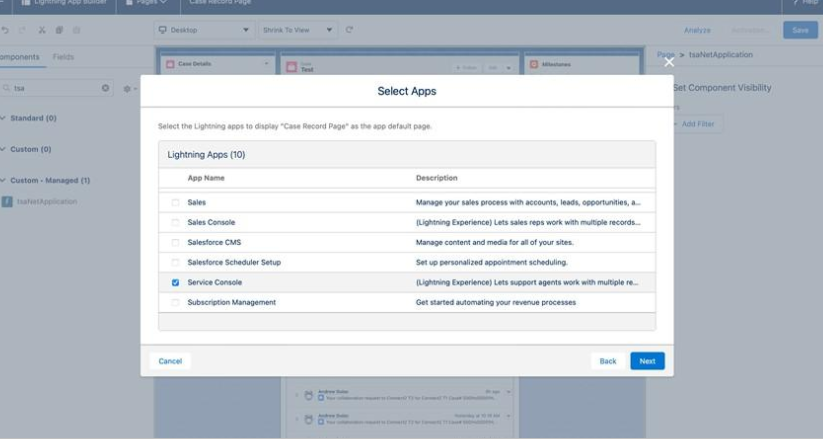
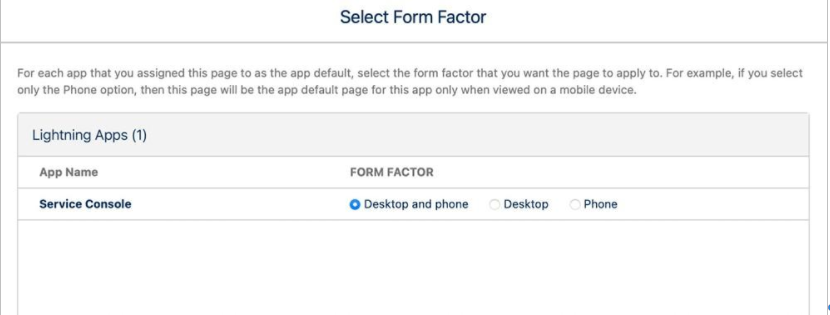
Click the Activate button → select APP DEFAULT tab → click Assign as App Default → choose your app → click Next and assign desktop and phone version → click Next and Save.
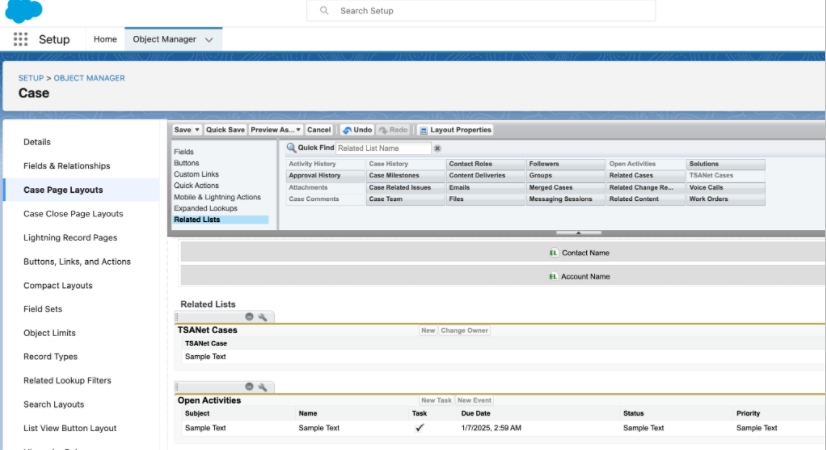
* **Add TSANetCase Related List to Case Page Layout**: Go to Setup → Object Manager → Case → Page Layout → select your page layout → scroll to Related List section → drag and drop TSANetCase related list to layout → Save.
Component & Layout Configuration - Dynamic Actions
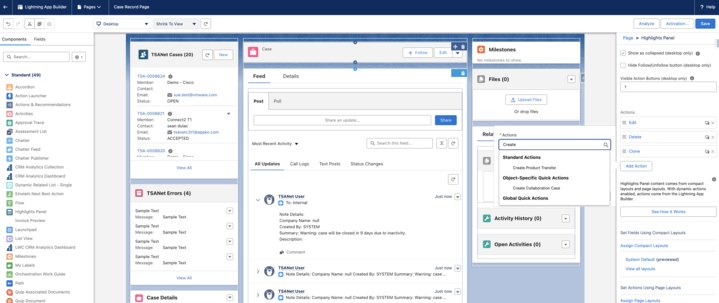
Use **Dynamic Actions configuration in Lightning App Builder:**
* **Click the Gear Icon → Edit Page**
* **Select the Highlights Panel**
* In the right-hand panel, under **Page > Highlights Panel**, click the section that controls the header buttons (where Edit / Delete are).
* **Modify Actions**
* In the **Actions** section on the right:
* Click **Add Action**
* Use the search bar and type **tsa**
***
```
- You’ll see categories like:
- Standard Actions
- Object-Specific Quick Actions
- Global Quick Actions
- Find **Create New TSANet Case** under **Object-Specific Quick Actions**
```
* **Add the Action**
* Select **Create New TSANet Case** and add it to the Actions list
* Arrange it in the order you want (drag & drop)
* **Save and Activate**
* Click **Save**
* Click **Activation** (if required)
* The action appears in the **Highlights Panel** dropdown
* Clicking the action opens the member search modal:
* Then the user completes the form:
Component & Layout Configuration - Customization Options
For members who do not want to include the Lightning Web Component on the Case page, it is possible to integrate actions, lists, and flows into your existing case form. Below is an example of this approach, showing a Member adding this to the section of the case page that already includes actions and related links.
**There are two options to add the Create New TSANet Case action:**
**Option 1:**
* **Click the Gear Icon → Edit Page**
* You’ve already done this and are in the Lightning App Builder.
* **Select the Highlights Panel**
* In the right-hand panel, under **Page > Highlights Panel**, click the section that controls the header buttons (where Edit/Delete are).
* **Modify Actions**
* In the **Actions** section on the right:
* Click **Override the predefined actions** if it’s not already overridden.
* You’ll see categories like:
* Standard Actions
* Object-Specific Actions
* Global Quick Actions
* Find **Create New TSANet Case** under **Object-Specific Actions**.
* **Add Create New TSANet Case**
* Drag **Create New TSANet Case** into the list of actions.
* Arrange it in the order you want.
* **Save and Activate**
* Click **Save**.
* If prompted, click **Activate** to make sure this page is assigned to the correct app/profile.
* **Refresh the Case Page**
* Go back to a Case record and check the dropdown. The button should now appear.
**Option 2:**
* **Go to Setup**
* Click the gear icon → **Setup**.
* **Open Object Manager**
* Search for **Case** and click it.
* **Edit Page Layout**
* Go to **Page Layouts**.
* Select the layout used for your Case records.
* **Locate the Lightning Actions Section**
* Scroll down to **Salesforce Mobile and Lightning Experience Actions**.
* If you don’t see it, click the **override the predefined actions** link.
* **Add the Create New TSANet Case Action**
* In the palette at the top, find **Create New TSANet Case** (and, if you want it, **Refresh TSANet Cases**).
* Drag it into the **Salesforce Mobile and Lightning Experience Actions** section.
* **Save the Layout**
* Click **Save**.
* Refresh your Case record page and check the dropdown.
**Steps to Create a Related List with Actions**
**1. Identify the Custom Action**
* Determine the action you want users to perform from the related list (e.g., send note, attachment).
* Ensure the action is compatible with the object and its layout.
**2. Modify the Page Layout**
* Go to **Setup** → **Object Manager** → Select the object.
* Open the **Page Layouts** section.
* Add the related list to the layout where the action should be accessible.
**3. Configure the Related List**
* Use standard related list settings to include the relevant custom object or record type.
* Make sure the related list supports **action buttons** or **quick actions**.
**4. Avoid Lightning Web Components (if not required)**
* If the goal is simplicity or client preference, use traditional related list configurations.
* Only use Lightning Web Components when their functionality is explicitly needed.
**5. Test the Setup**
* Preview the layout to confirm the related list appears correctly.
* Test the action to ensure it performs as expected.
* Validate that the user experience is intuitive and meets business requirements.
**Actions included in the package**
On the **Case** object:
* **Create New TSANet Case**
* **Refresh TSANet Cases**
On the **TSANet Case** object:
* **Accept**, **Close**, **Create Note**, **Reject**, **Request Information**, **Send Information**, **Upload File**
* Screen-flow versions: **Accept ( Screen Flow )**, **Close ( Screen Flow )**, **Create Note ( Screen Flow )**, **Reject ( Screen Flow )**, **Request Information ( Screen Flow )**, **Send Information ( Screen Flow )**
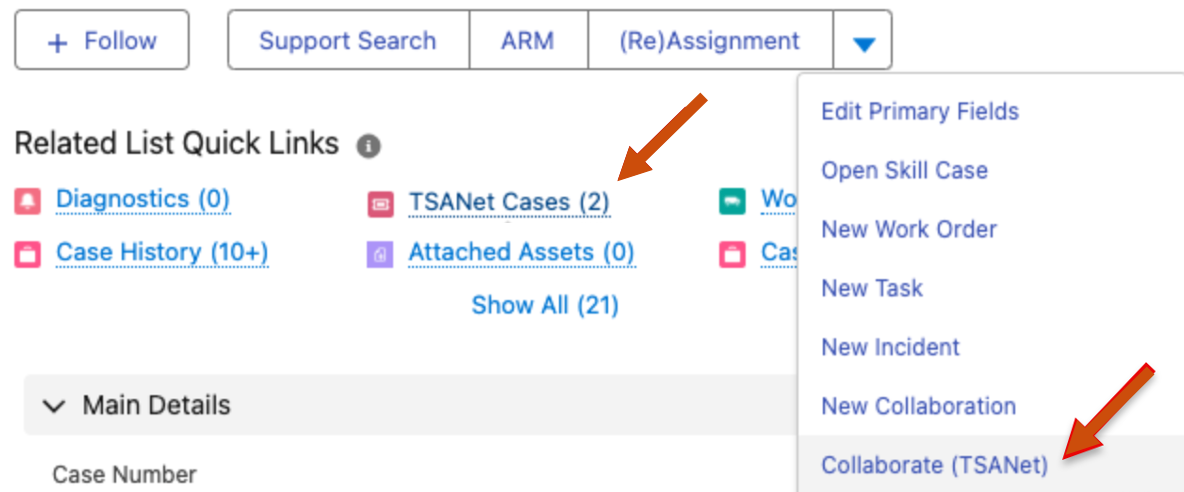
To show TSANet Cases on a Case, add the **TSANet Cases** related list to the Case page layout (see **Add TSANetCase Related List to Case Page Layout** above). To let users send a note or a file from a TSANet Case, add **Create Note** and **Upload File** to the TSANet Case page layout or Lightning page.
**Note**: Flows for further automation and customization can be found in the following section
### Automation and Flows:
TSANet uses Salesforce Flows to define the business logic for TSANet Connect. Several flows are provided and members can clone and modify as needed.
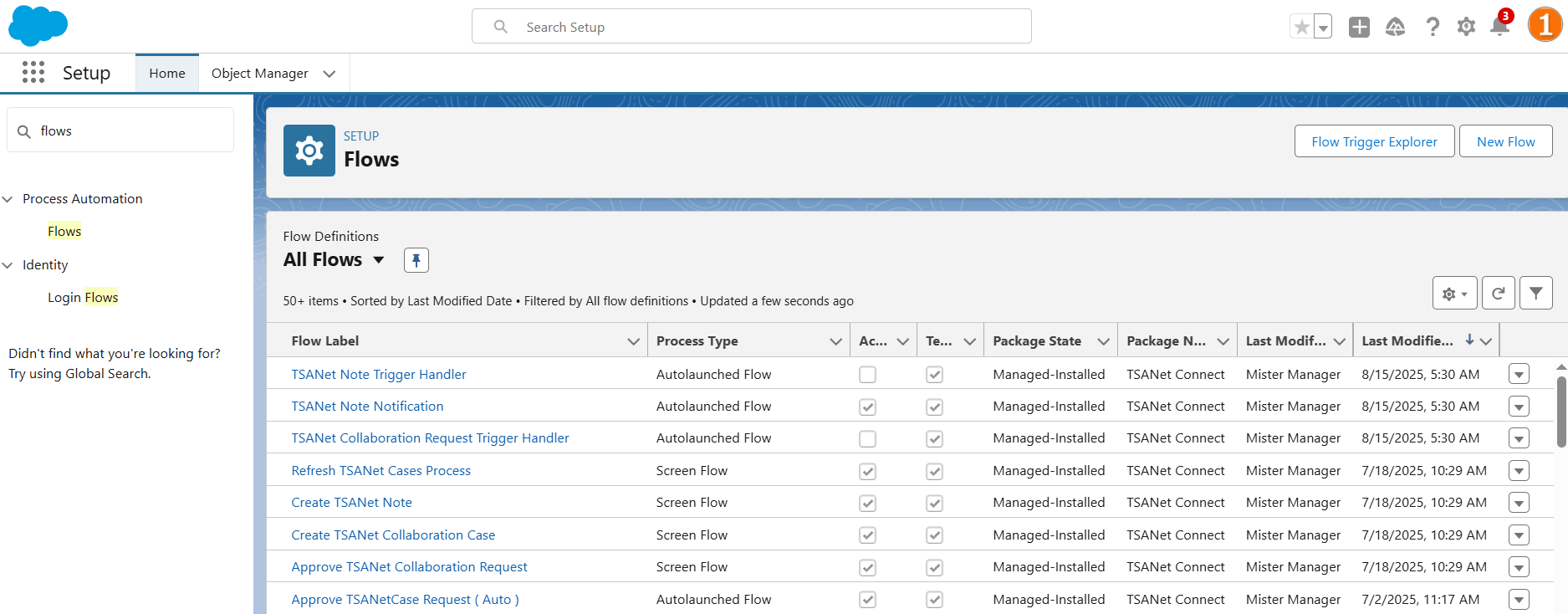
Navigate to flows
You can navigate to Flows as follows:
Go to Setup → type “flows” in Quick Find (path: Process Automation → Flows).
From there, you can:
* Create a new Flow using Flow Trigger Explorer or by clicking New Flow.
* View available packaged flows by searching for “TSANet” in field Search Lists under Flow Definitions to see all TSANet-related flows available for activation.
TSANetScheduledJob
The TSANetScheduledJob is a background job that synchronizes data between Salesforce and TSANet.
By default, it is scheduled to run every 15 minutes, ensuring that case updates and notes are regularly exchanged.
You may adjust the cron expression if your organization requires a different sync interval: Go to Setup → type “Scheduled Jobs” in Quick Find (path: Environments → Jobs → Scheduled Jobs) → search for *TSANetScheduledJob* → click *Manage* → update cron expression → Save.
**Examples:**
**A) Every 15 minutes (create 4 schedules)**
Use these **four** schedules:
1. **Job Name:** `TSANetScheduledJob – Every 15 (00)`\
**Cron Expression:**
```
0 0 * * * ?
```
2. **Job Name:** `TSANetScheduledJob – Every 15 (15)`\
**Cron Expression:**
```
0 15 * * * ?
```
3. **Job Name:** `TSANetScheduledJob – Every 15 (30)`\
**Cron Expression:**
```
0 30 * * * ?
```
4. **Job Name:** `TSANetScheduledJob – Every 15 (45)`\
**Cron Expression:**
```
0 45 * * * ?
```
B) **Every 10 minutes** (create **6** schedules)
1. `TSANetScheduledJob – Every 10 (00)`
```
0 0 * * * ?
```
2. `TSANetScheduledJob – Every 10 (10)`
```
0 10 * * * ?
```
3. `TSANetScheduledJob – Every 10 (20)`
```
0 20 * * * ?
```
4. `TSANetScheduledJob – Every 10 (30)`
```
0 30 * * * ?
```
5. `TSANetScheduledJob – Every 10 (40)`
```
0 40 * * * ?
```
6. `TSANetScheduledJob – Every 10 (50)`
```
0 50 * * * ?
```
C) **Every 5 minutes** (create **12** schedules)
1. `TSANetScheduledJob – Every 5 (00)`
```
0 0 * * * ?
```
2. `TSANetScheduledJob – Every 5 (05)`
```
0 5 * * * ?
```
3. `TSANetScheduledJob – Every 5 (10)`
```
0 10 * * * ?
```
4. `TSANetScheduledJob – Every 5 (15)`
```
0 15 * * * ?
```
5. `TSANetScheduledJob – Every 5 (20)`
```
0 20 * * * ?
```
6. `TSANetScheduledJob – Every 5 (25)`
```
0 25 * * * ?
```
7. `TSANetScheduledJob – Every 5 (30)`
```
0 30 * * * ?
```
8. `TSANetScheduledJob – Every 5 (35)`
```
0 35 * * * ?
```
9. `TSANetScheduledJob – Every 5 (40)`
```
0 40 * * * ?
```
10. `TSANetScheduledJob – Every 5 (45)`
```
0 45 * * * ?
```
11. `TSANetScheduledJob – Every 5 (50)`
```
0 50 * * * ?
```
12. `TSANetScheduledJob – Every 5 (55)`
```
0 55 * * * ?
```
{% hint style="info" %}
Note: `0 5 * * * ?` — that would run **once per hour at minute 5**, not every 5 minutes
{% endhint %}
{% hint style="info" %}
* Salesforce **does not support `*/X` or `0/X` increments** like Linux cron. You must explicitly list the minutes (**not** allow shorthand like `*/15`)
* Use **explicit values** (comma-separated) or ranges.
* Use `?` for **Day of Month or Day of Week** when the other is specified.
{% endhint %}
Invocable Actions
* Create TSANet Collaboration Case, TSANet Accept Collaboration Request, Reject TSANet Collaboration Request
* Get TSANet Companies, Get Company Form
* Create TSANet Note, Request More Information, Send More Information
* Close TSANet Collaboration Request, TSANet Change Owner, Refresh TSANet Cases
* Process TSANet Webhook Event
**Inbound Flows:** These flows are used in the inbound process
TSANet: Inbound: Accept Collaboration Request (Automation)
This is an **autolaunched Salesforce Flow** that automates the process of accepting a TSANet collaboration request.
The flow:
* Retrieves the related TSANet case record
* Invokes a subflow to gather approval details
* Executes an Apex action to accept the collaboration request
This automation handles the acceptance of TSANet collaboration requests in a consistent and automated manner.
TSANet: Inbound: Accept Collaboration Request (Screen Flow)
This is a **screen‑based Salesforce Flow** that allows users to accept a TSANet collaboration request through a guided interface.
The flow:
* Retrieves the related TSANet case record
* Evaluates whether the Salesforce case is already assigned
* Displays a required assignment screen if the case is not assigned
* Displays a screen to capture acceptance notes
* Invokes an automation subflow to accept the TSANet collaboration request
* Evaluates the result and displays an error screen if the acceptance fails
This automation handles the acceptance of TSANet collaboration requests through a user‑driven, guided flow with validation and error handling.
**Status after installation:** Inactive. Activate it in Setup → Flows before you use it.
TSANet: Inbound: Auto Accept Collaboration Request
This is a **record-triggered Salesforce Flow** that automates the acceptance of inbound TSANet collaboration requests.
The flow is triggered when a **TSANet Case record is created** and runs immediately after creation, based on defined entry conditions.
The flow:
* Evaluates newly created **TSANet Case records** against configured conditions
* Invokes a **subflow (TSANet Accept – Automation)** to process the collaboration request
* Executes the acceptance logic without requiring user interaction
This automation ensures that eligible inbound collaboration requests are accepted consistently and automatically, improving response time and reducing manual effort.
TSANet: Inbound: Auto Accept Collaboration Request (Future)
This is a **record-triggered Salesforce Flow** that automates the acceptance of incoming TSANet collaboration requests.
The flow is triggered when a **TSANet Case record is created** and is configured to run **asynchronously using a scheduled path**.
The flow:
* Monitors newly created **TSANet Case records** based on defined entry conditions
* Executes a **subflow (TSANet Accept)** via a scheduled path to automatically accept the collaboration request
* Processes the acceptance without requiring user interaction
This automation ensures that eligible inbound collaboration requests are accepted automatically, improving response time and reducing manual effort while maintaining consistent processing.
TSANet: Inbound: Collaboration Request Trigger Handler
This is a **record‑triggered Salesforce Flow** that runs automatically when a TSANet Case record is created.
The flow:
* Creates a corresponding Salesforce Case record
* Updates the TSANet case with the linked Salesforce case information
* Invokes a subflow to accept the TSANet collaboration request
* Sends a notification after successful processing
This automation handles the acceptance and processing of incoming TSANet collaboration requests.
TSANet: Inbound: Collaboration Request Trigger Handler (Asset)
This is a **record‑triggered Salesforce Flow** that runs automatically when a TSANet Case record is created.
The flow:
* Retrieves the related asset record
* Evaluates whether a matching asset is found
* If no asset is found, triggers an automation to reject the collaboration request
* If an asset is found, creates a Salesforce case, updates the TSANet case, triggers the accept automation, and sends a notification
This automation handles the evaluation and processing of incoming TSANet collaboration requests based on asset availability.
TSANet: Inbound: Find Parent Case (Template)
This is a **record-triggered Salesforce Flow** that automates the identification and linking of related parent cases for TSANet inbound and outbound scenarios.
The flow is triggered when a **TSANet Case record is created** and runs **before the record is saved**, so the matched case is stamped on the record without an extra update.
The flow:
* Evaluates the **case direction (Inbound or Outbound)** using a decision element
* Retrieves related **Salesforce Case records** based on the submitter or receiver case number
* Performs **matching logic** to determine whether a corresponding parent case is found
* Executes an **assignment** to stamp and populate data from the matched parent case
* Applies the logic separately for **Submitter (Outbound)** and **Receiver (Inbound)** flows
This automation ensures that TSANet cases are properly linked to their corresponding parent cases, improving data consistency and enabling accurate tracking across inbound and outbound collaboration scenarios.
TSANet: Inbound: Note Notification
This is a **record-triggered Salesforce Flow** that automates the process of sending notifications when a new TSANet note arrives.
The flow is triggered when a **TSANet Note record is created or updated** and the note has not been notified yet. It also runs on update because notes synced by refresh or webhook are saved as updates.
The flow:
* Evaluates whether the note is a **new note** (created today) using a decision element
* Retrieves the related **TSANet Case record** associated with the note
* Invokes a **subflow** to send a notification based on the note and case details
* Updates the TSANet Note record to mark it as **notified**, preventing duplicate notifications
This automation ensures that notifications for newly created TSANet notes are handled consistently and efficiently, improving communication and reducing manual effort.
TSANet: Inbound: Note Trigger Handler
This is a **record‑triggered Salesforce Flow** that runs automatically when a TSANet Note record is created.
The flow:
* Evaluates the newly created TSANet Note
* Updates the related TSANet case if required
* Assigns note details for processing
* Retrieves the associated TSANet case record
* Executes an Apex action to create and sync the TSANet note
This automation handles the processing of newly created TSANet notes and ensures they are correctly linked to related cases.
TSANet: Inbound: Reject Collaboration Request (Automation)
This is an **autolaunched Salesforce Flow** that automates the process of rejecting a TSANet collaboration request.
The flow:
* Retrieves the related TSANet case record
* Invokes a subflow to gather the rejection collaboration request details
* Executes an Apex action to process and submit the TSANet rejection
This automation handles the rejection of TSANet collaboration requests in a consistent and automated manner.
TSANet: Inbound: Reject Collaboration Request (Screen Flow)
This is a **screen‑based Salesforce Flow** that allows users to reject a TSANet collaboration request through a guided interface.
The flow:
* Displays a screen to capture the rejection reason
* Invokes a subflow to submit the rejection request
* Evaluates the result of the operation
* Displays an error screen if the rejection fails
This automation handles the rejection of TSANet collaboration requests through a user‑driven, guided flow.
**Status after installation:** Inactive. Activate it in Setup → Flows before you use it.
TSANet: Inbound: Request More Information (Trigger)
This is a **record-triggered Salesforce Flow** that automates the process of requesting additional information for a newly created TSANet case.
The flow is triggered when a **TSANet Case record is created** and runs immediately after creation.
The flow:
* Retrieves and evaluates the newly created TSANet Case record based on defined entry conditions
* Invokes a **subflow** to load and prepare the Request Information form
* Executes an **Apex action** to send or process the request for additional information
This automation ensures that requests for more information on TSANet cases are handled consistently, efficiently, and without manual intervention, improving data completeness and reducing processing delays.
**Outbound Flows:** These flows are used in the outbound process
TSANet: Outbound: Create Collaboration Case
This is a **screen Salesforce Flow** that guides users through the process of creating a TSANet collaboration case and automates related data preparation and submission.
The flow is initiated manually by the user and provides a step-by-step interface to gather and process the required information.
The flow:
* Retrieves the **Salesforce Case record** to establish the context for the collaboration
* Presents **interactive screens** to capture TSANet details and allow the user to search and select a partner company
* Executes **Apex actions** to search for companies and retrieve relevant customer data
* Uses **assignments and loops** to process and map the selected company and customer data into the required format
* Displays a **collaboration form** for the user to review and complete additional details
* Performs **field assignments** and presents a **verification screen** for final confirmation
* Executes an **Apex action** to create the collaboration case in TSANet
* Displays a **result screen** confirming the creation of the collaboration case
This automation streamlines the creation of TSANet collaboration cases by guiding users through a structured process, ensuring data accuracy, and reducing manual effort.
TSANet: Outbound: Create Collaboration Case (LWC)
This is a **screen Salesforce Flow** that provides a user interface for creating a TSANet collaboration case using a Lightning Web Component.
The flow is initiated manually by the user and guides the process through a structured interface.
The flow:
* Retrieves the related **Salesforce Case record** to establish the context
* Displays a **screen (CreateTSANetScreen)** leveraging a Lightning Web Component to capture and present collaboration details
* Allows users to review and input the required information before submitting the request
This automation provides a streamlined and user-friendly interface for creating TSANet collaboration cases, ensuring accurate data entry and improving the overall user experience.
TSANet: Outbound: Create Note (Screen Flow)
This is a **screen‑based Salesforce Flow** that allows users to create a TSANet note for a specific case through a guided interface.
The flow:
* Retrieves the related TSANet case record
* Displays a screen to capture note details
* Invokes an automation subflow to create the note
* Evaluates the result with a decision element
* Displays an error screen if the note creation fails
This automation handles the creation of TSANet notes for cases through a user‑driven, guided flow.
**Other Flows:** These flows are common to both inbound and outbound process
TSANet: Case Link Change Sync
This is a **record-triggered Salesforce Flow** that automates synchronization when a TSANet Case record is updated.
The flow is triggered when a **TSANet Case record is updated** and runs immediately after the update, based on defined entry conditions.
The flow:
* Monitors updates to the **TSANet Case record**, including changes to key fields such as case links
* Evaluates the defined **trigger conditions** to determine if synchronization is required
* Executes an **Apex action (Notify TSANet)** to propagate the update and synchronize data with TSANet
This automation ensures that changes to TSANet case links are consistently communicated and synchronized, reducing manual intervention and maintaining data alignment between systems.
TSANet: Case Owner Change Handler
This is a **record-triggered Salesforce Flow** that automates the handling of TSANet-related updates when a Case owner is changed.
The flow is triggered when a **Case record is updated** and runs immediately after the update, based on defined entry conditions.
The flow:
* Retrieves related **TSANet Case records** associated with the updated Case
* Iterates through the retrieved records using a **loop** to process each TSANet Case individually
* Evaluates whether each record meets the criteria to trigger a notification using a **decision element**
* Executes an **Apex action (Change TSANet Owner)** for records that meet the criteria to update the owner in TSANet
* Skips records that do not meet the conditions and continues processing the remaining records
This automation ensures that ownership changes on Cases are consistently propagated to TSANet, maintaining alignment between systems and reducing manual updates.
TSANet: Close Collaboration Request (Automation)
This is an **autolaunched Salesforce Flow** that automates the process of closing a TSANet collaboration request.
The flow is triggered programmatically and runs without user interaction.
The flow:
* Retrieves the related **TSANet Case record** to identify the collaboration request
* Executes an **Apex action (Close Collaboration Request)** to close the request in TSANet
This automation ensures that collaboration requests are closed in a consistent and automated manner, reducing manual effort and maintaining synchronization between Salesforce and TSANet.
TSANet: Close Collaboration Request (Screen Flow)
This is a **screen‑based Salesforce Flow** that allows users to close a TSANet collaboration request through a guided interface.
The flow:
* Displays a verification screen to confirm the close action
* Invokes an automation subflow to close the TSANet collaboration request
* Evaluates the result of the operation
* Displays an error screen if the close operation fails
This automation handles the closure of TSANet collaboration requests through a user‑driven, guided flow.
**Status after installation:** Inactive. Activate it in Setup → Flows before you use it.
TSANet: Create Note (Automation)
This is an **autolaunched Salesforce Flow** that automates the creation of a TSANet note for a specific case.
The flow:
* Retrieves the related TSANet case record
* Invokes a subflow to load the note creation form
* Executes an Apex action to create the TSANet note
This automation handles the creation of TSANet notes and ensures they are associated with the correct cases.
TSANet: Get Approve Collaboration Request Form
This is an **autolaunched Salesforce Flow** that automates the preparation of the approval form for a TSANet collaboration request.
The flow is triggered programmatically and runs without user interaction.
The flow:
* Retrieves the related **Salesforce Case record** to gather the necessary data for the approval process
* Performs an **assignment** to generate and structure the TSANet approval form data
This automation standardizes the preparation of approval forms for TSANet collaboration requests, ensuring consistency and reducing manual effort in the approval process.
TSANet: Get Note Form
This is an **autolaunched Salesforce Flow** that automates the preparation of a TSANet note form based on an existing case.
The flow is triggered programmatically and runs without user interaction.
The flow:
* Performs an **assignment** to construct and populate the TSANet note form
This automation standardizes the creation of TSANet note forms, ensuring consistency and reducing manual effort when preparing note-related data.
TSANet: Get Reject Collaboration Request Form
This is an **autolaunched Salesforce Flow** that automates the preparation of a rejection form for a TSANet collaboration request.
The flow is triggered programmatically and runs without user interaction.
The flow:
* Retrieves the related **Salesforce Case record** to gather the required data for the rejection process
* Performs an **assignment** to create and structure the TSANet reject form
This automation ensures that rejection forms for collaboration requests are generated in a consistent and standardized manner, reducing manual effort and supporting a streamlined rejection process.
TSANet: Get Request Information Form
This is an **autolaunched Salesforce Flow** that automates the preparation of a request information form for a TSANet case.
The flow is triggered programmatically and runs without user interaction.
The flow:
* Performs an **assignment** to populate and structure the Request Information form data
This automation standardizes the preparation of request information forms, ensuring consistency and reducing manual effort when requesting additional information for TSANet cases.
TSANet: New Collaboration Case Notification
This is a **record-triggered Salesforce Flow** that automates the notification process when a new TSANet collaboration case is created.
The flow is triggered when a **TSANet Case record is created** and runs immediately after creation.
The flow:
* Monitors newly created **TSANet Case records** based on defined entry conditions
* Invokes a **subflow (Send Notification)** to trigger the appropriate notification process
* Ensures the notification is sent without requiring user interaction
This automation ensures that stakeholders are promptly notified about new collaboration cases, improving communication and reducing manual effort.
TSANet: Refresh Collaboration Requests
This is a **screen‑based Salesforce Flow** that allows users to manually refresh TSANet collaboration requests.
The flow:
* Executes an Apex action to refresh TSANet case data
* Evaluates the result of the refresh operation
* Displays a success or error message to the user based on the outcome
This automation handles the refresh and validation of TSANet collaboration requests and provides feedback on the operation result.
**Status after installation:** Inactive. Activate it in Setup → Flows before you use it.
TSANet: Request Information (Automation)
This is an **autolaunched Salesforce Flow** that automates the process of requesting additional information for a TSANet case.
The flow:
* Retrieves the related TSANet case record
* Invokes a subflow to load the request information form
* Executes an Apex action to process the information request
This automation handles the process of requesting additional information for TSANet cases in a consistent and automated manner.
TSANet: Request Information (Screen Flow)
This is a **screen‑based Salesforce Flow** that allows users to request information for a specific TSANet case through a guided interface.
The flow:
* Retrieves the related TSANet case record
* Displays a screen to capture the information request details
* Invokes a subflow to prepare the request information form
* Executes an Apex action to submit the information request
* Evaluates the result and displays an error screen if the request fails
This automation handles the submission of information requests for TSANet cases through a user‑driven, guided flow.
TSANet: Request More Information (Screen Flow)
This is a **screen‑based Salesforce Flow** that allows users to request additional information for a TSANet case through a guided interface.
The flow:
* Displays a screen to capture the information request details
* Invokes an automation subflow to submit the request
* Evaluates the result of the operation
* Displays an error screen if the request fails
This automation handles the requesting of additional information for TSANet cases through a user‑driven, guided flow.
**Status after installation:** Inactive. Activate it in Setup → Flows before you use it.
TSANet: Send Information (Automation)
This is an **autolaunched Salesforce Flow** that automates the process of sending requested information for a TSANet case.
The flow:
* Retrieves the related TSANet case record
* Invokes a subflow to load the request information form
* Executes an Apex action to send the requested information
This automation handles the sending of requested information for TSANet cases in a consistent and automated manner.
TSANet: Send Information (Screen Flow)
This is a **screen‑based Salesforce Flow** that allows users to send requested information for a TSANet case through a guided interface.
The flow:
* Displays a screen to capture the requested information
* Invokes an automation subflow to send the entered information
* Evaluates the result of the operation
* Displays an error message if the submission fails
This automation handles the sending of requested information for TSANet cases through a user‑driven, guided flow.
**Status after installation:** Inactive. Activate it in Setup → Flows before you use it.
TSANet: Send Notification (Subflow)
This is an **autolaunched Salesforce Flow** designed to standardize and automate the notification process for TSANet-related events.
The flow is invoked as a **subflow from other flows** and runs without user interaction.
The flow:
* Retrieves the related **Salesforce Case record** to establish context for the notification
* Retrieves the **notification type configuration** to determine how and to whom the notification should be sent
* Performs an **assignment** to compile and structure the list of notification recipients
* Executes an **action** to send the notification based on the prepared data
This subflow centralizes notification logic, ensuring consistent communication across TSANet processes while reducing duplication and simplifying maintenance.
TSANet Collaboration Request Trigger Handler (Custom)
This flow automates the handling of Inbound TSANet Collaboration Requests in Salesforce. When a new TSANet Case record is created, the flow:
* Retrieves related Asset and Contact records
* Creates a Salesforce Case
* Updates the Collaboration Request with the Case ID
* Assigns variables for TSANet processing
* Approves the collaboration request via Apex
* Sends a custom notification to the case owner
**Flow Details:**
* **Flow Label:** TSANet Collaboration Request Trigger Handler (Custom)
* **Flow Type:** Record-Triggered After Save
* **Trigger Object:** TSANet Case
* **Trigger Condition:** A record is created
* **Activation Status:** Activated
### Step-by-Step Configuration
#### Step 1: Configure Start
**Object:** TSANet Case
**Trigger:** A record is created
**Conditions:**
* Case is Null = True
* Direction = Inbound
* Serial Number is Null = False
#### Step 2: Get Asset by Serial Number
**Object:** Asset
**Filter:**
Serial Number = TSANet Case → Serial Number
#### Step 3: Decision – Asset Record Found
**Outcome:**
Asset Found if Asset record exists
#### Step 4: Get Contact
**Object:** Contact
**Filter:**
* Email = TSANet Case → Customer Email
#### Step 5: Decision – Is Contact Found
**Outcome:**
* Contact Found if Contact record exists
#### Step 6: Create Salesforce Case Record
**Object:** Case
**Fields Mapped:**
* Asset ID → Asset record
* Contact ID → Contact record
* Description → TSANet Case Description
* Case Origin → Web
* Priority → CasePriority
* Subject → TSANet Case Summary
* Case Type → Other
#### Step 7: Update Collaboration Request
Attach Case ID to TSANet Case record
#### Step 8: Get Salesforce Case
Retrieve Case details for variable assignment
#### Step 9: Assignment – TSANetCaseRequest
**Assign variables:**
* caseNumber
* engineerEmail
* engineerName
* engineerPhone
* nextSteps
#### Step 10: Apex Action – Approve Incoming Collaboration Request
**Inputs:**
* caseRecord = TSANet Case
* request = TSANetCaseRequest
#### Step 11: Get Notification Type
**Object:** Custom Notification Type
**Filter:**
* Name = TSANet\_Notification
#### Step 12: Assignment – Add Recipient
* Add Case Owner User ID to `recipientIds` variable
#### Step 13: Send Custom Notification
* **Notification Title:** TSANetCase Confirmed Successfully
* **Notification Body:** Your case has been successfully confirmed
* **Recipient IDs:** recipientIds
* **Target ID:** TSANet Case Record ID
### Flow Diagram
```
Start
→ Get Asset
→ Decision (Asset Found?)
→ Get Contact
→ Decision (Contact Found?)
→ Create Case
→ Update TSANet Case
→ Get Case
→ Assignment
→ Apex Action
→ Get Notification Type
→ Assignment (Recipient)
→ Send Notification
→ End
```
### Notes
* Ensure Apex class `ApproveIncomingCollaborationRequest` is deployed
* Custom Notification Type `TSANet_Notification` must exist
### References
Video Tutorial
### Package Overview
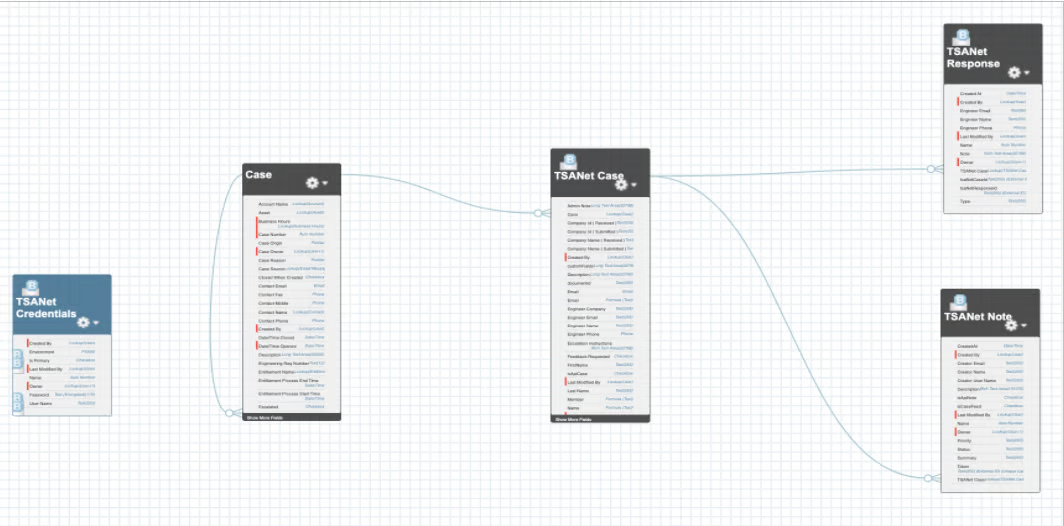
Package Objects, related lists to objects
* **TSANet Case -** A collaboration case within the TSANet framework that serves as the primary record for tracking collaboration between member organizations during a support issue.
**Key attributes may include:**
* TSANet CaseID
* Case (lookup field)
* Status \[ACCEPTED, OPEN, INFORMATION, CLOSED, REJECTED]
* Type \[INBOUND, OUTBOUND]
* Priority \[LOW, MEDIUM, HIGH]
* Priority Note
* Summary
* Description
* Request Date
* Response SLA (Datetime)
* Token (ExternalID)
**Member Information:**
* Company Name (Submitted)
* Name
* Email
* Phone
* Company Name (Received)
* Engineer Name
* Engineer Email
* Engineer Phone
* **Key attributes may include:**
* TSANet CaseID
* Case (lookup field)
* Status \[ACCEPTED, OPEN, INFORMATION, CLOSED, REJECTED]
* Type \[INBOUND, OUTBOUND]
* Priority \[LOW, MEDIUM, HIGH]
* Priority Note
* Summary
* Description
* Request Date
* Response SLA (Datetime)
* Token (ExternalID)
**Member Information:**
* Company Name (Submitted)
* Name
* Email
* Phone
* Company Name (Received)
* Engineer Name
* Engineer Email
* Engineer Phone
* Other Information (custom fields)
* **TSANet Note** – the object is used for logging and managing communications or updates related to a TSANet Case. It allows members to document important information about the case in real-time
**Key attributes include:**
* TSANet Case (lookup)
* Summary
* Description
* Creator Name
* Status
* Priority \[LOW, MEDIUM, HIGH]
* Type \[Public, Partner, System, Escalation, Status] (added in package 2.14; see **User Guide → Create Note**)
* Created At
* Token (ExternalID)
* **TSANet Response** - object captures formal replies or actions taken with an inbound TSANet Case.
**Key attributes include:**
* TSANet Response ID (ExternalID)
* TSANet Case (lookup)
* Type
* Note
* Created At
* Engineer Email
* Engineer Phone
* **TSANet Credentials** - object stores and manages secure access information within the TSANet framework. This object ensures member organizations have the necessary authentication details for collaborative support.
*\* you can have only one credential marked as primary.*
**Key attributes may include:**
* Named Credential (the packaged endpoint, for example `TSANetAPI`)
* Integration User
* Is Primary (mark as true)
* Is Connected (set by the package after a successful callout)
**Add a Related List to an Object:**
Many of the Workforce Engagement features rely on related lists to associate information. During your initial configuration, you may need to add related lists to objects.
**To add a related list to an object:**
1. Open **Setup** | **Object Manager** | **{select the object}** | **Page Layouts** | **{object name} Layout**.
2. Select **Related Lists** from the {object name} Layout menu at the top of the page.
3. Drag and drop a related list into the related lists section of the page. Repeat this step for each related list that you want to add.
4. Save your changes.








-%20V1.png?alt=media&token=a2cdd426-11a2-4177-8629-f43fabab7496)
-%20V7.png?alt=media&token=bbb13c79-2cee-4be5-b113-27f160f40505)

-%20V1.png?alt=media&token=65096932-3a31-491e-84eb-4b033c24e54d)

-%20V5.png?alt=media&token=7d966a5f-a2e6-4935-bbf3-a3c995df0825)
-%20V1.png?alt=media&token=cf8c3d19-a342-443d-93fb-0ae9a982357d)


-%20V4.png?alt=media&token=a8b22311-cedd-444f-ae8f-ceae115f1fe7)
-%20V4.png?alt=media&token=769ab17b-8d09-4561-9c8b-9db71d0f4688)


-%20V1.png?alt=media&token=898c9f2f-76e0-4f32-8b5f-8d6971d0af68)
-%20V1.png?alt=media&token=0cd81226-d6af-4fda-9b26-efd961ac447b)


-%20V1.png?alt=media&token=83200fa0-57f9-454a-bc58-16f87674325d)
-%20V3.png?alt=media&token=8dcb0972-5a1c-441d-9022-4c827d5b6c88)
-%20V2.png?alt=media&token=b95ed886-6769-40e3-817c-677c96b71827)


-%20V3.png?alt=media&token=5da822b7-fa39-49b1-b4db-7846629f0c22)
-%20V1.png?alt=media&token=5ca7d884-dde5-4554-839e-140dd686bc9d)
-%20V1.png?alt=media&token=f4d66794-e34b-4470-99c0-0139f52c6669)
-%20V2.png?alt=media&token=ec3d1eb9-f9e2-488f-80d9-a61c301bbd1e)
-%20V2.png?alt=media&token=355a978a-2737-4cb8-a2a1-58149045887d)
-%20V1.png?alt=media&token=5f3a4666-e008-41b8-84de-d724642e80ab)
%20-%20V6.png?alt=media&token=924ce242-f76e-451e-875f-1be13df18137)
%20-%20V6.png?alt=media&token=4f832fde-c3cb-4b23-9fe2-da64ca8c5401)
%20-%20V6.png?alt=media&token=aa340dbe-97f2-466b-86b8-bd1a885749b0)
%20-%20V6.png?alt=media&token=9043add3-cd1c-4fe1-b3cb-962aef0dd012)
%20-%20V6.png?alt=media&token=5cff68a8-0da6-4b5c-8ff3-04025eefc534)
%20-%20V6.png?alt=media&token=62e2bc10-82bc-473e-9f5c-245c59c23bcc)
%20-%20V6.png?alt=media&token=d6ba4491-55b8-4d59-9c64-890cc6f5d19c)
%20-%20V6.png?alt=media&token=109a12f9-43f3-4f1f-9f46-e9fccf9681a5)
%20-%20V6.png?alt=media&token=89022553-9021-477d-a7fd-aaf134b6b64b)
%20-%20V6.png?alt=media&token=48b66b2e-f87e-4bab-b8d1-c2de7751d49f)